Step 1
Power on your Gateway
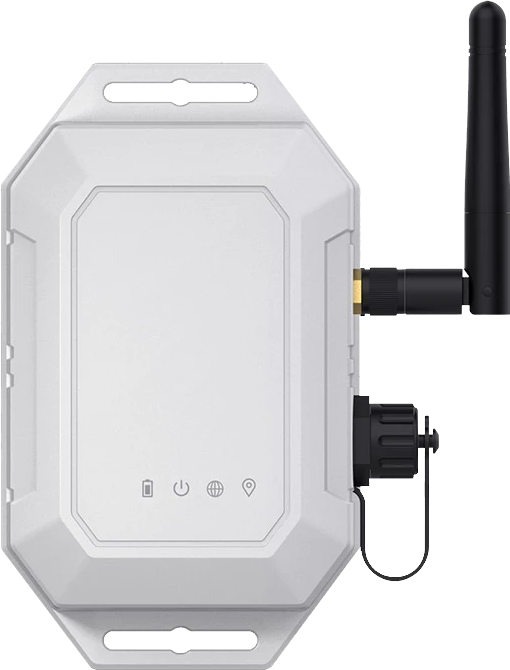
Plug your Gateway into a power source. Once connected, the Gateway will power on automatically.
- Use any standard wall socket near the centre of your home.
- No buttons to press — it starts on its own.
Your Centarc Global Gateway and Emergency Button have already been securely configured and linked before delivery. Follow these simple steps to power on your Gateway, test your Button, and register your details.
~5 min
Setup time
4 easy
Simple steps
Bluetooth
Connection
Already linked for you
No pairing needed — your Button knows its Gateway.
Make sure you have everything ready before starting the setup process.
Make sure your Gateway is available and ready to connect to a power source.
Keep your Emergency Button close to the Gateway during the initial test.
Ensure you have access to a suitable power source for the Gateway.
Have your personal information ready for the registration step.
Before your devices were shipped, the Centarc Global team securely registered your Emergency Button with its assigned Gateway. You do not need to manually pair your devices.
Assigned to one specific Gateway before shipping.
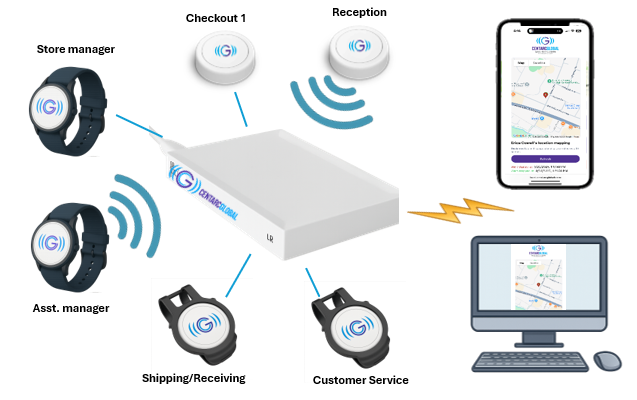
The Button talks to your Gateway wirelessly.
Receives the Button signal and confirms with a flash.
Your Gateway sends the alert to our support system.
Follow each card in order and mark it as done as you go. Your progress is saved on this device.
Step 1
Plug your Gateway into a power source. Once connected, the Gateway will power on automatically.
Step 2
Keep your Emergency Button close to the Gateway. The Button communicates with the Gateway through Bluetooth, so stay nearby while performing the initial test.
Step 3
Press your Emergency Button once. The Button sends a signal to the Gateway.
Light flashes = signal sent
Step 4
Watch the Gateway after pressing your Button. When the Gateway successfully receives the Button signal, the Gateway light will flash.
Every press follows the same simple path — from your Button, through your Gateway, to our support team.
Your Button and Gateway are already paired, but registration connects your system to a real person, place and phone number so support can act the moment an alert arrives.
Your name and details are attached to your Gateway so our team can identify you instantly.
Your address lets emergency contacts and responders reach the right place first time.
Your phone number and email are used to confirm an alert and follow up afterwards.
Registration links your Gateway ID to your monitoring profile in our support system.
It takes less than a minute. Your details are used only to support you during an emergency.
Error: Contact form not found.
Quick answers to the things customers ask us most during setup.
No. Your Emergency Button was registered to its assigned Gateway before shipping. Simply power on the Gateway and press the Button to test.
Choose a socket near the centre of your home so the Button can reach the Gateway from any room. Avoid metal cabinets or basements.
The Button signals the Gateway, the Gateway sends the alert to Centarc Global support, and our team responds and contacts you or your emergency contacts.
Move closer to the Gateway and press the Button again. If it still does not flash, unplug the Gateway for 10 seconds, plug it back in and retest, then call support.
No. The Button talks to your Gateway over Bluetooth and the Gateway handles the connection to our support system. No app or phone is required.
Yes. Complete the form for the first Gateway, then choose "Register another Gateway" and enter the second Gateway ID.
If your Button or Gateway is not behaving as described, contact us before relying on the system.
Fastest way to get help with setup or a device that is not responding.